When you publish an agent on Spinstack, you don't just get an API endpoint — you get a complete web presence generated automatically. Every agent comes with a set of pages your users can visit. This guide walks through what each page does, which ones you can customize, and how to do it.
A tour of your agent's pages
Every published agent gets the following pages. They all live under a single domain and share your chosen theme and branding.
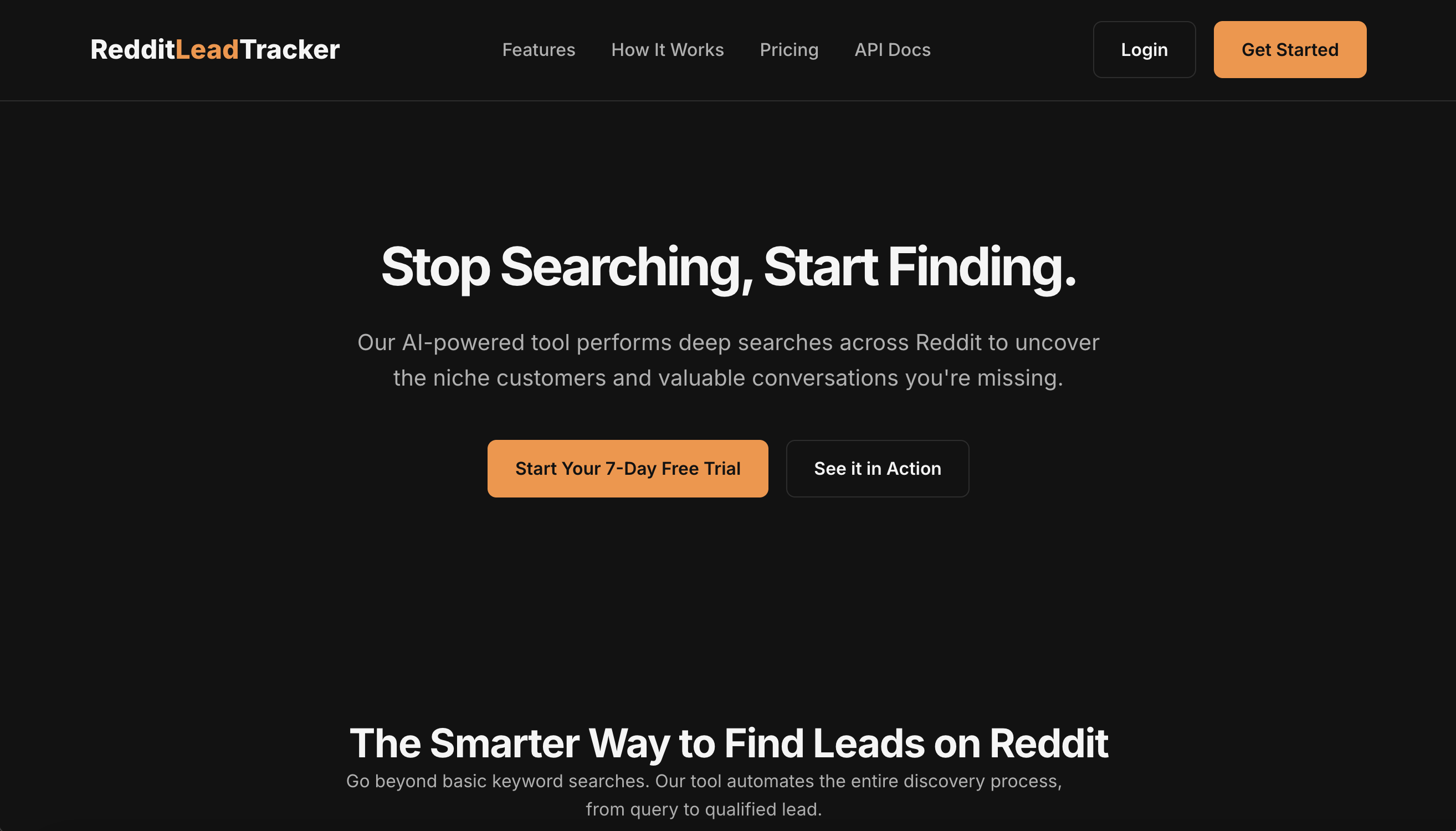
Home page AI-editable
The landing page for your agent — the first thing a potential user sees. It is generated by AI on publish using your agent's description, name, and pricing configuration. It includes a hero section, feature highlights, pricing preview, and call-to-action buttons. You can fully rewrite it at any time using the AI editor.
App page AI-editable
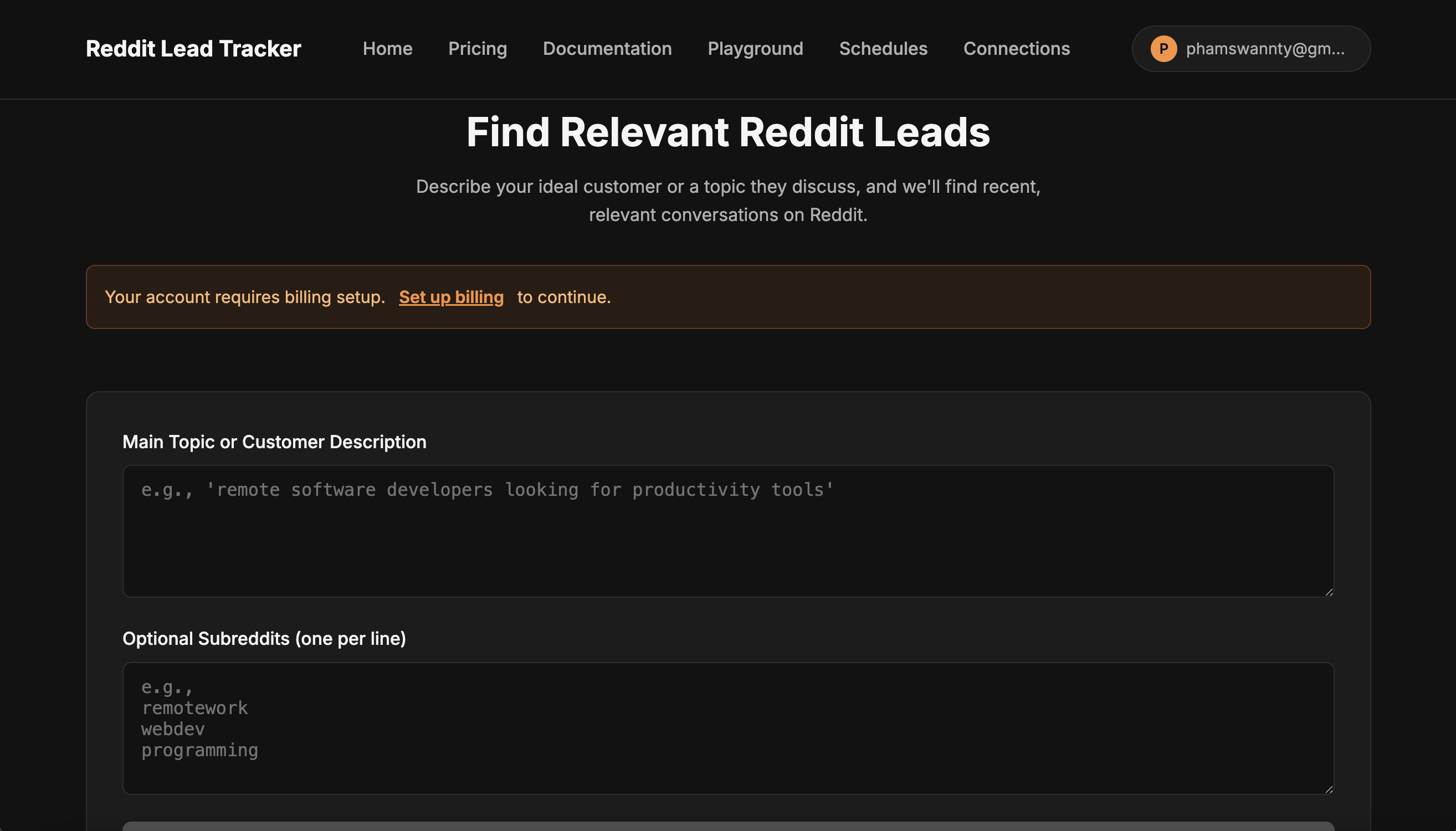
The interactive page where authenticated users run your agent. It renders your trigger form — the input fields defined in your agent — and displays the output when the agent finishes. The page is generated from your agent's inputs and outputs and can be fully rewritten with the AI editor.
Pricing page Auto-managed
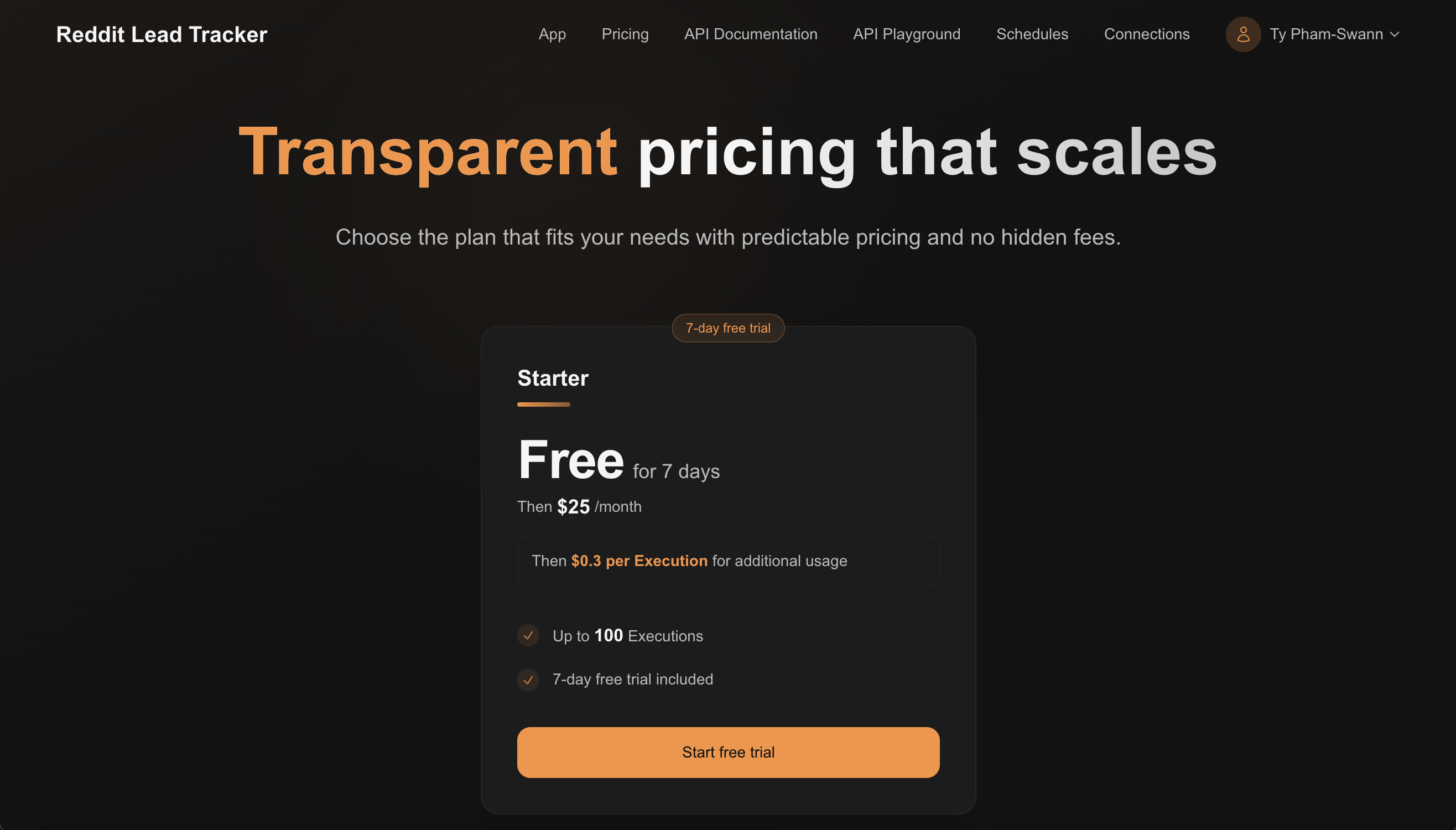
A page that displays your subscription tiers or usage pricing. When a user clicks a plan, they are taken directly to checkout. To change what appears here — tiers, prices, trial periods, overage rates — configure them in the Payments section of Manage Agent.
API Documentation Auto-managed
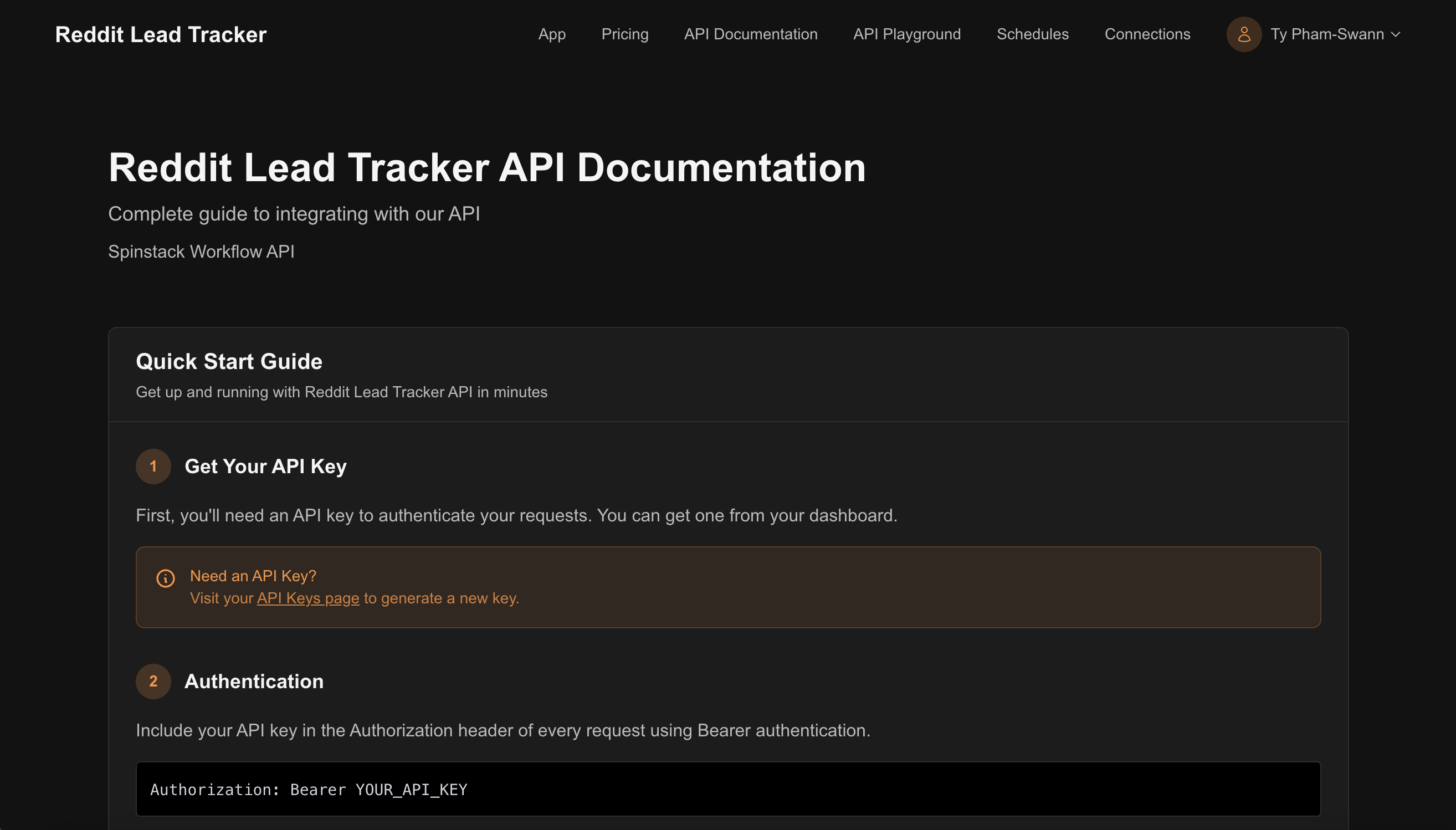
Auto-generated documentation built from your agent's OpenAPI specification. It includes a quick-start guide, authentication instructions, and endpoint references. Updated automatically when you republish your agent.
API Playground Auto-managed
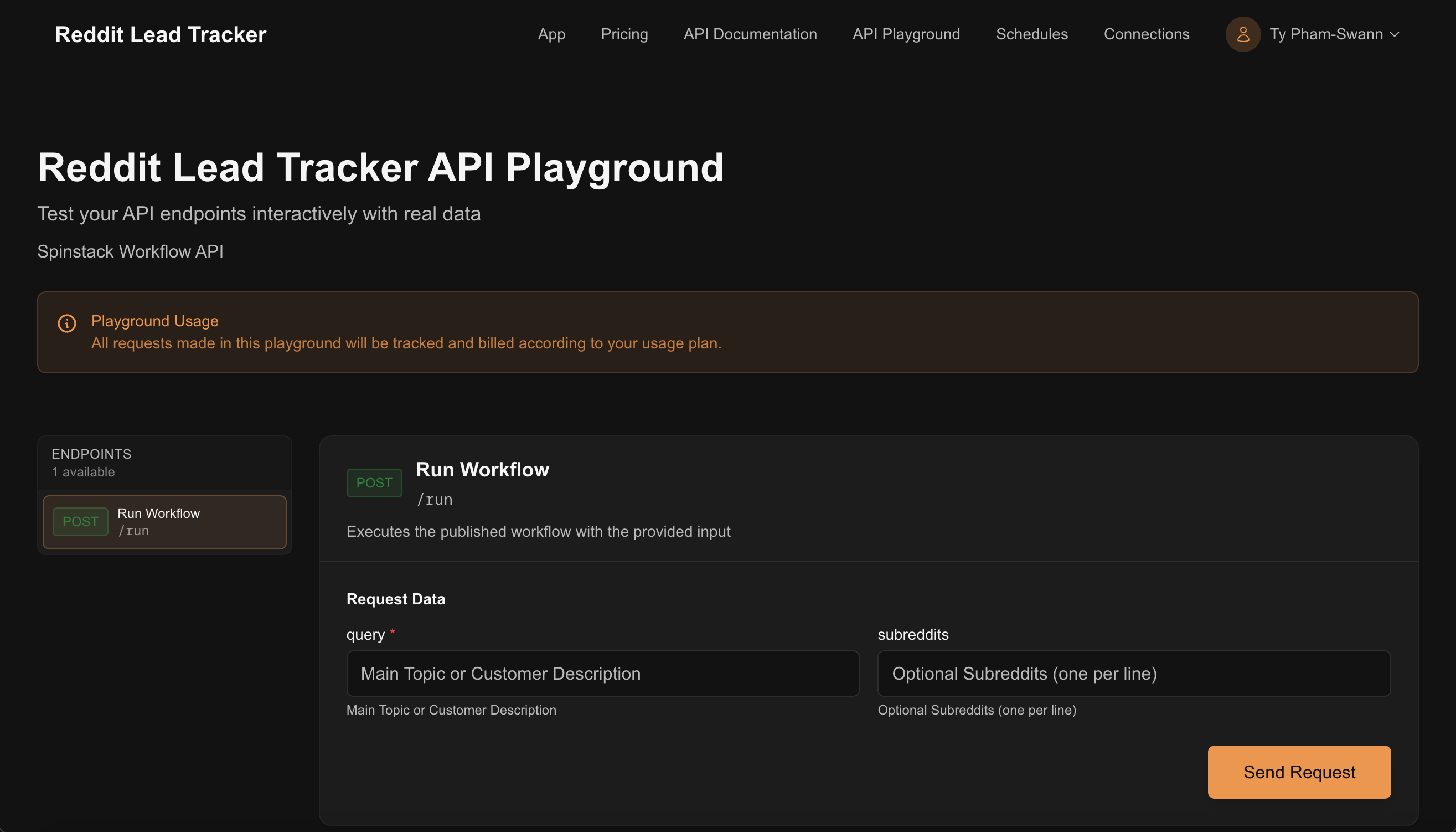
An interactive playground where users can test your agent's API endpoints using their own API key, directly in the browser. Requests are live and billed according to the user's plan.
Scheduling Auto-managed
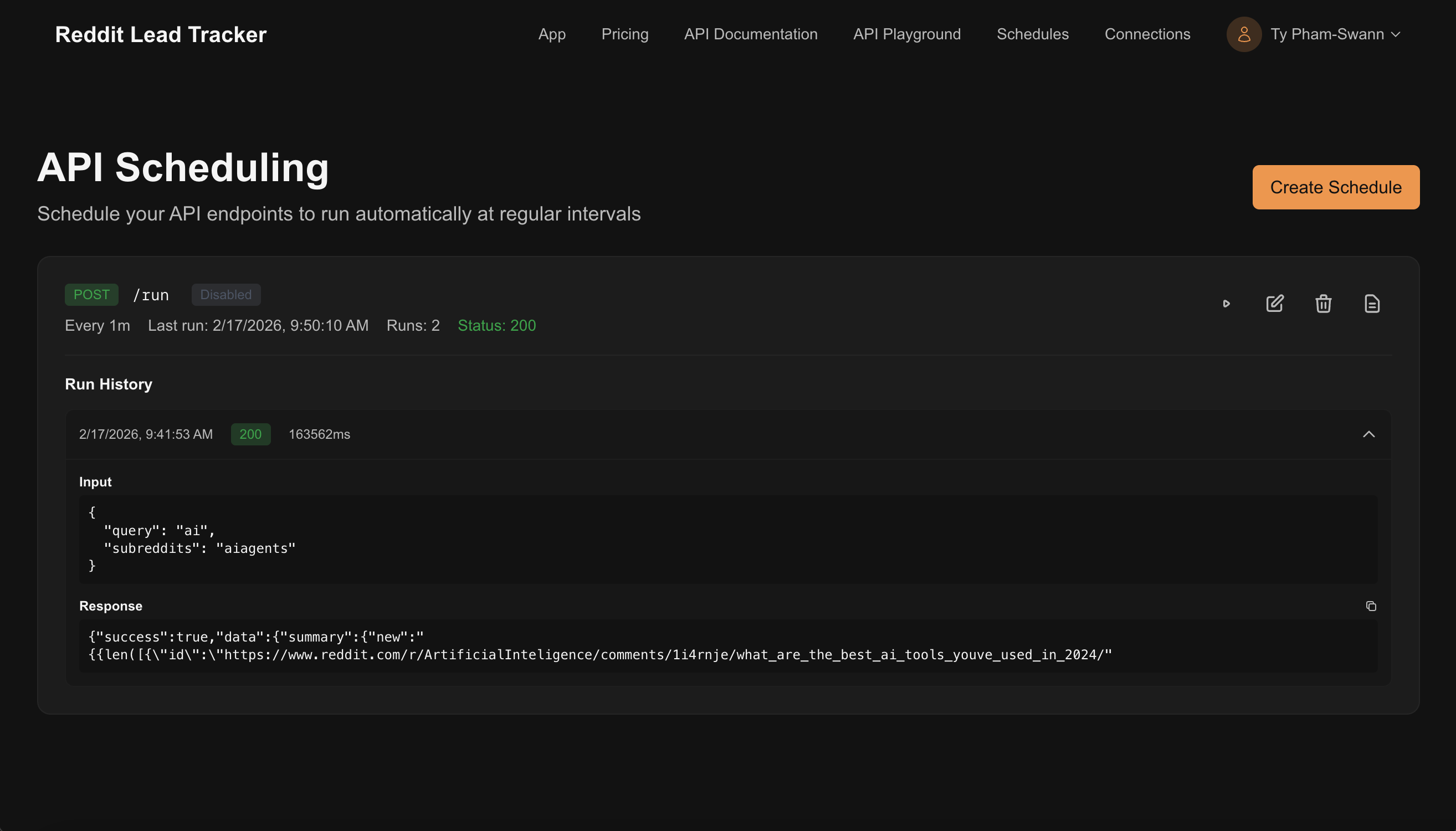
Users can schedule your agent to run automatically at a set interval — every minute, hourly, daily, and so on. They configure the schedule, provide the input, and the platform runs your agent on their behalf. Run history and response logs are visible here too.
Service Connections Auto-managed
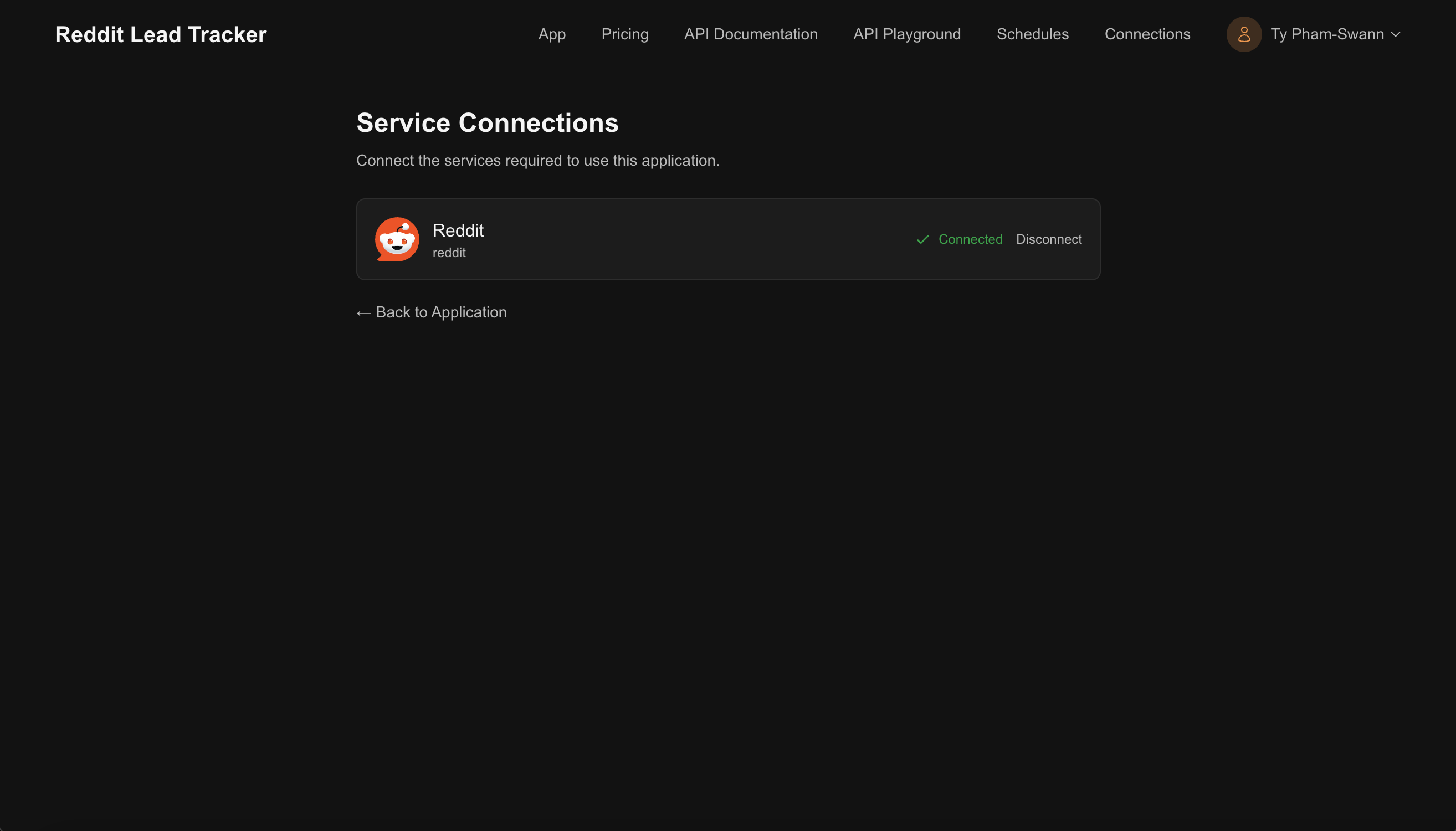
This page only appears when your agent uses integrations in end-user mode — meaning each of your users needs to connect their own account (e.g. their own Reddit, Gmail, or Slack). Users are prompted to authenticate here before they can run the agent.
User portal & subscription management Auto-managed
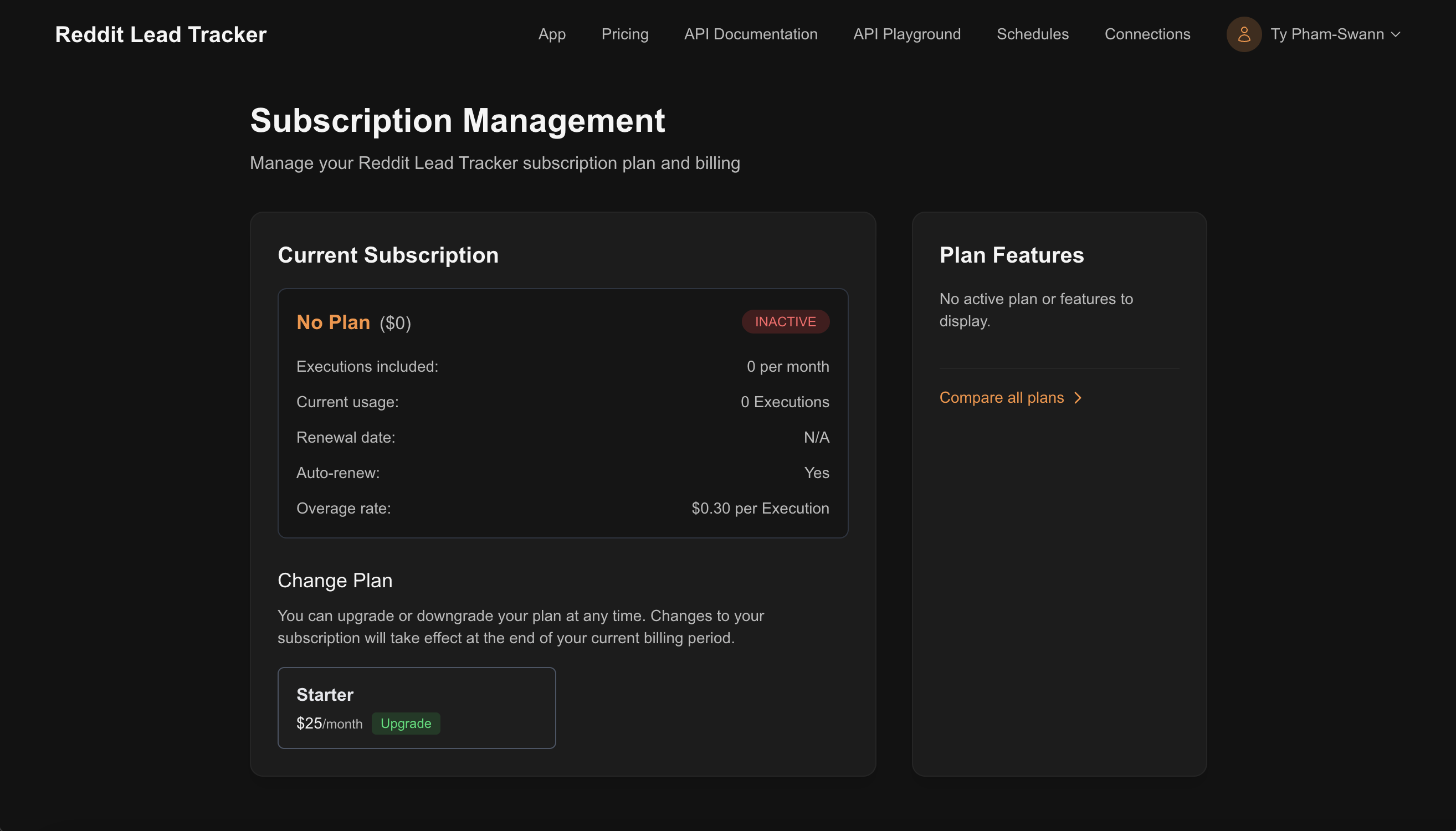
Your users can manage their subscription, view current usage and overage rates, change plans, and generate API keys — all from a self-serve portal built into your agent's app. You don't need to build or configure any of this.
Payment checkout Auto-managed
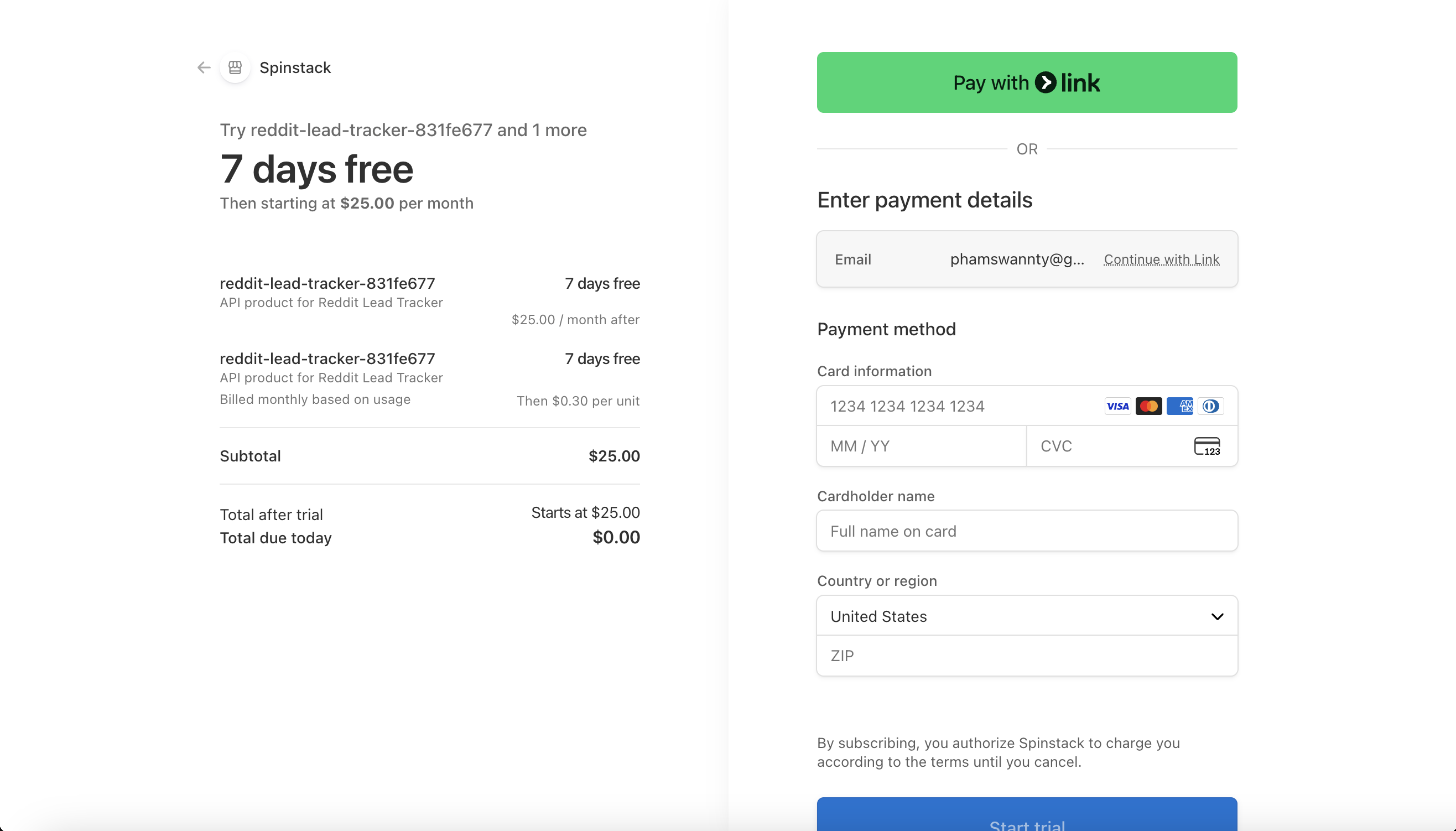
When a user clicks to subscribe, they are taken to a Stripe-hosted checkout page. Spinstack handles the entire payment flow, subscription lifecycle, and overage billing automatically. You connect your Stripe account once from the Payments section of Manage Agent, and Spinstack routes revenue to you after taking a small platform fee.
AI-editing your home page and app page
The home page and app page are fully AI-editable. Everything else is auto-managed and updates automatically when you change your agent's configuration.
How to open the editor
From the Manage Agent page, find the Your Agent's Website section. Next to the Home Page entry you will see an Edit with AI button. For the App Page, expand the API & Portal Pages section and click the edit icon next to App Page. Both open the same Page Editor in a new tab.
Using the Page Editor
The Page Editor has two panels side by side: a chat panel on the left and a live preview of your page on the right. Type what you want to change and the AI rewrites the page HTML to match. The preview updates so you can see the result before saving.
Example edit instructions for your home page:
- "Add a section below the hero explaining the three main use cases"
- "Change the headline to 'Find Reddit leads on autopilot'"
- "Add a testimonials section with three placeholder quotes"
- "Make the CTA button larger and change its color to match the primary brand color"
Example edit instructions for your app page:
- "Add a description above the form explaining what each field is for"
- "Display the output in a card layout instead of plain text"
- "Add a loading animation while the agent is running"
- "Make the subreddits field a multi-select tag input"
When you are happy with the result, save the changes and they go live immediately. No republishing required for page edits.
Tip: regenerate from scratch
If you want to start fresh rather than iterating, tell the AI to "regenerate the entire page from scratch" with a brief description of what you want. It will rewrite the full HTML rather than making targeted edits.
Customizing your API pages
The auto-managed pages — Pricing, API Docs, Playground, User Portal, and Checkout — are generated and maintained by Spinstack. You don't edit them with the AI editor, but you can control how they look and behave through two places in Manage Agent:
- Page Customization — logo, custom domain, and custom pricing units
- Payments — pricing tiers, trial periods, overage rates, and Stripe setup
Upload a logo (PNG, JPEG, or SVG) from the Page Customization section and it will appear in the navigation of your API pages — the portal, pricing, docs, and playground. Use a square image for best results. You can also set a link URL so the logo links back to your main website.
Connect your own domain from the Page Customization section (e.g. yourdomain.com) so all your pages — home, app, and API — are accessible at your domain instead of the default Spinstack URL. Your site pages go to the apex domain and app.yourdomain.com, and your API lives at api.yourdomain.com. You add two DNS records and Spinstack handles the rest.
By default, usage is labeled in "API calls". From the Page Customization section you can rename this to something more meaningful for your use case — for example, "searches", "minutes", or "reports" — and the label updates across your pricing page and user portal.
Configure your pricing tiers, monthly amounts, trial periods, and overage rates from the Payments section of Manage Agent. This is also where you connect your Stripe account to start collecting revenue. Whatever you set here is reflected on your Pricing page and checkout flow.
Finding all your URLs
All page URLs are listed on the Manage Agent page under Your Agent's Website. The home page URL is shown prominently, and the rest are under the collapsible API & Portal Pages section. Click the copy icon next to any URL to copy it to your clipboard.
Default URL structure (before a custom domain):
https://{slug}/homehttps://{slug}/apps/runhttps://app.{slug}/portalhttps://app.{slug}/pricinghttps://app.{slug}/documentationhttps://app.{slug}/playgroundhttps://{slug}.spinstackapi.devCommon questions
Can I edit the pricing page or portal?
The pricing page reflects your pricing configuration exactly — change tiers, amounts, and overage rates in the Payments section of Manage Agent and they update automatically. The portal is fully auto-managed and cannot be customized, but it handles everything your users need: sign up, login, plan management, API keys, and usage history.
Do page edits require republishing?
No. Home page and app page edits made in the Page Editor go live when you save them — there is no need to republish your agent. Republishing is only needed when you change the agent itself in Agent Studio (its steps, tools, or trigger fields).
The AI editor changed something I didn't want. Can I undo it?
The Page Editor keeps a history of edits. You can restore a previous version from the history panel at the top of the editor. If you want to go all the way back to the original AI-generated page from publish, ask the editor to regenerate it from your agent's description.
When does the Service Connections page appear for my users?
Only when your agent uses an integration in end-user mode — meaning each user must connect their own account to run the agent. If your integrations are set to creator mode (your credentials are used for everyone), users never see the Connections page.
Can I add a custom domain without the Pro plan?
Custom domains are a Pro feature. On the free plan, your agent is accessible at the default Spinstack URL. Upgrading to Pro unlocks the custom domain settings on the Page Customization page.
Ready to customize your pages?
Head to the Manage Agent page for your published agent and click Edit with AI next to your home page or app page.
Go to My Agents